Grid maker
This grid maker builds an about-me board: rows of prompts like Favorite Game, Overrated and Best Soundtrack, each answered with one picture. The board above is a blank board, five across and four down, with the picture library beside it: write the prompts, click a slot, click a cover. Or pick a template below, then download the finished grid or publish it to share.
Also known as: about me grid, prompt grid maker, favorites grid, picture grid maker, about me template, game grid, anime grid.
Free. No account needed. Export a PNG.
Browse by category
See allEvery grid template, by subject. Open a category to pick a board, then answer its prompts with your own pictures.
Grid templates
See allA template is its prompts. Pick one and the board opens with the questions written and every slot empty, ready for your pictures.
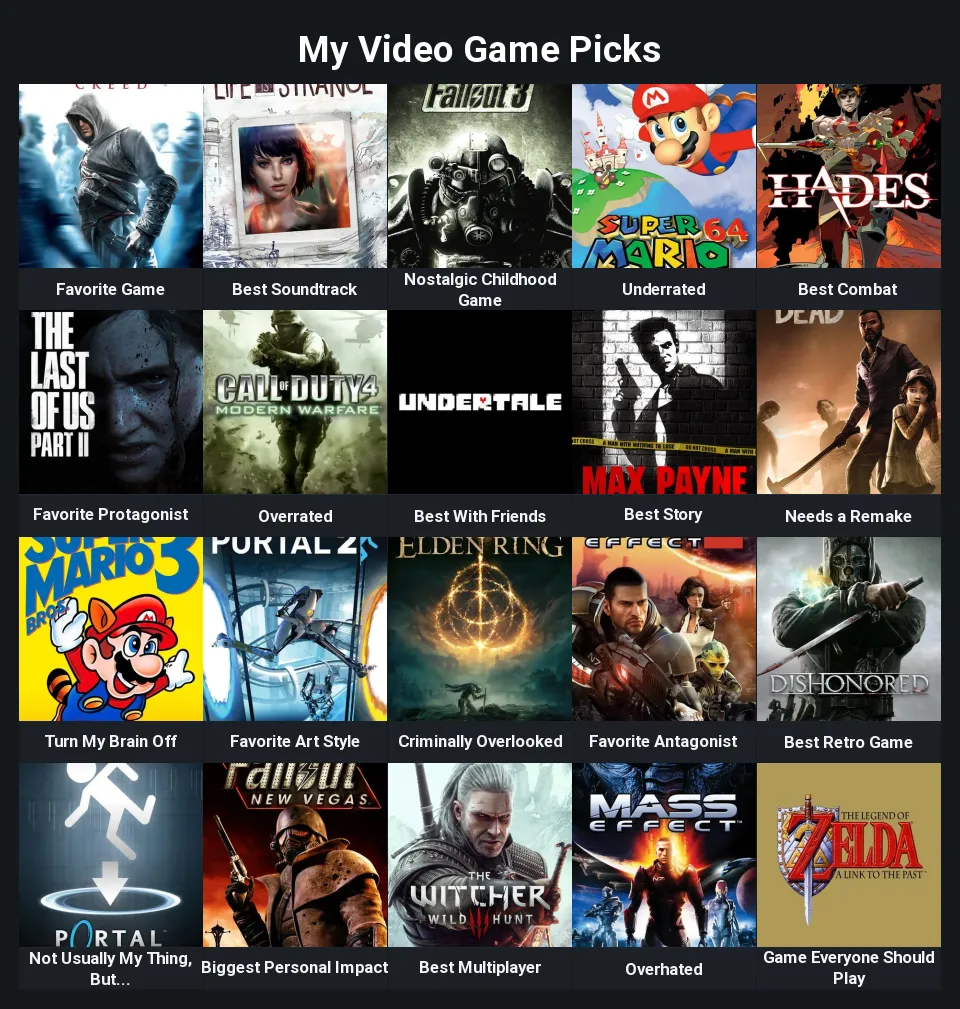 20slots
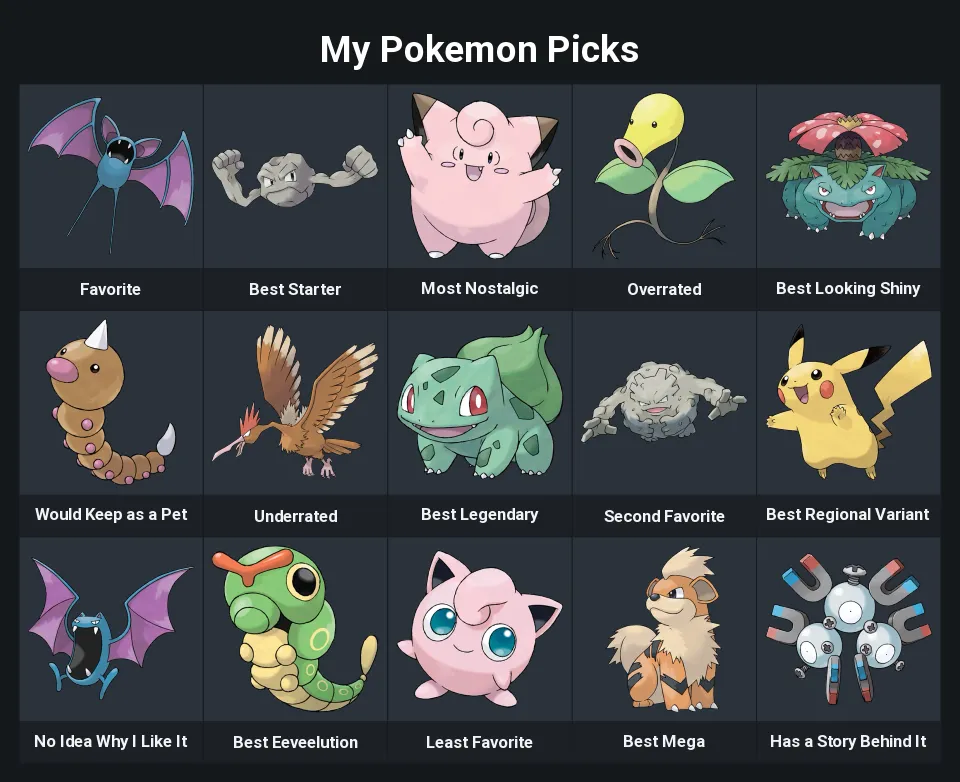 15slots
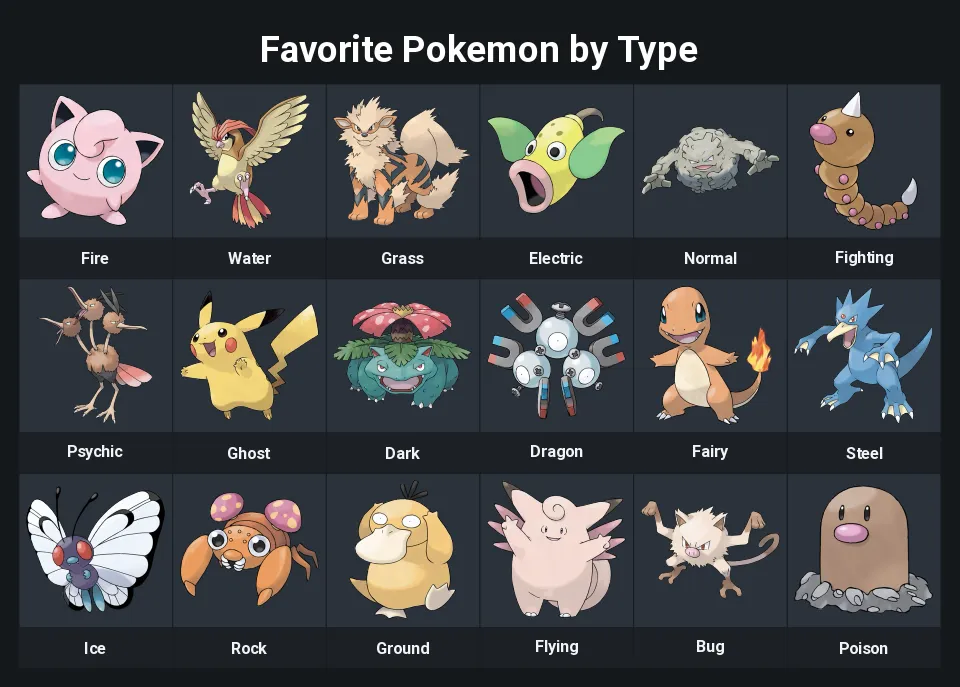 18slots
 9slots
 15slots
 15slots
 15slots
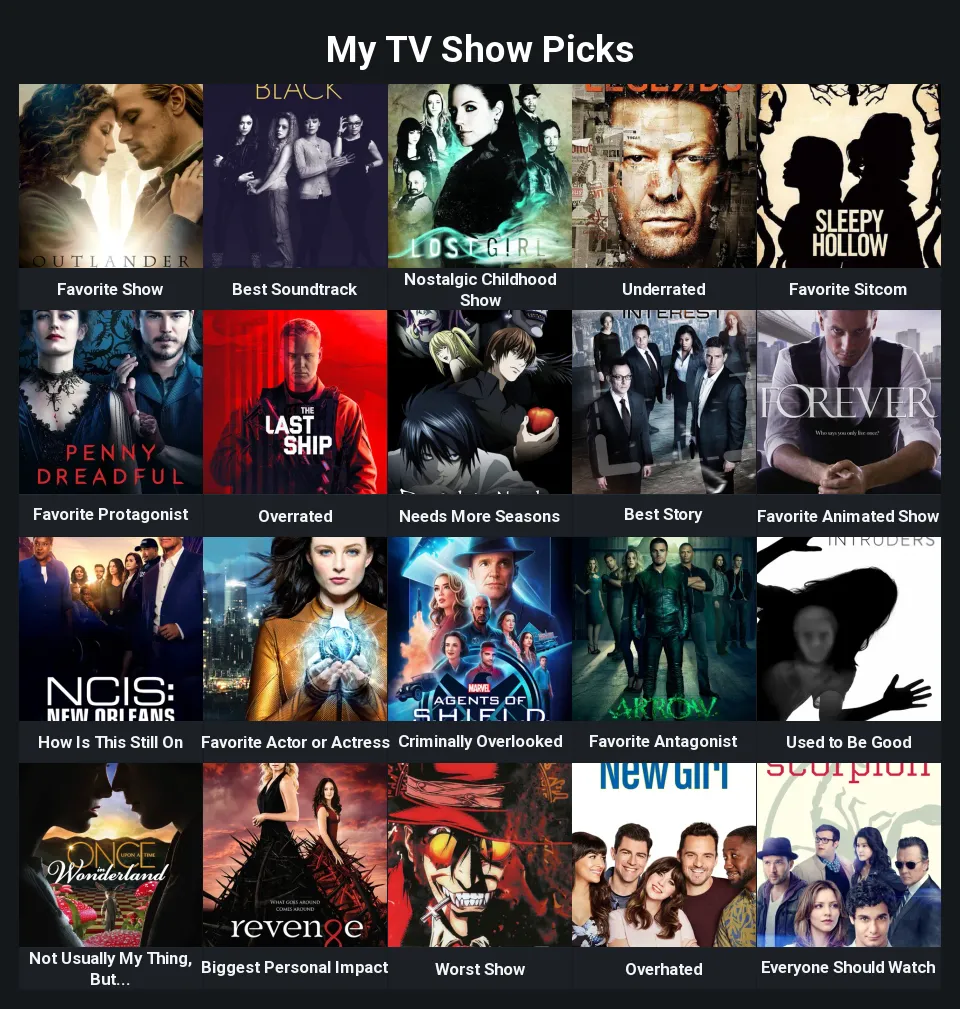 20slots
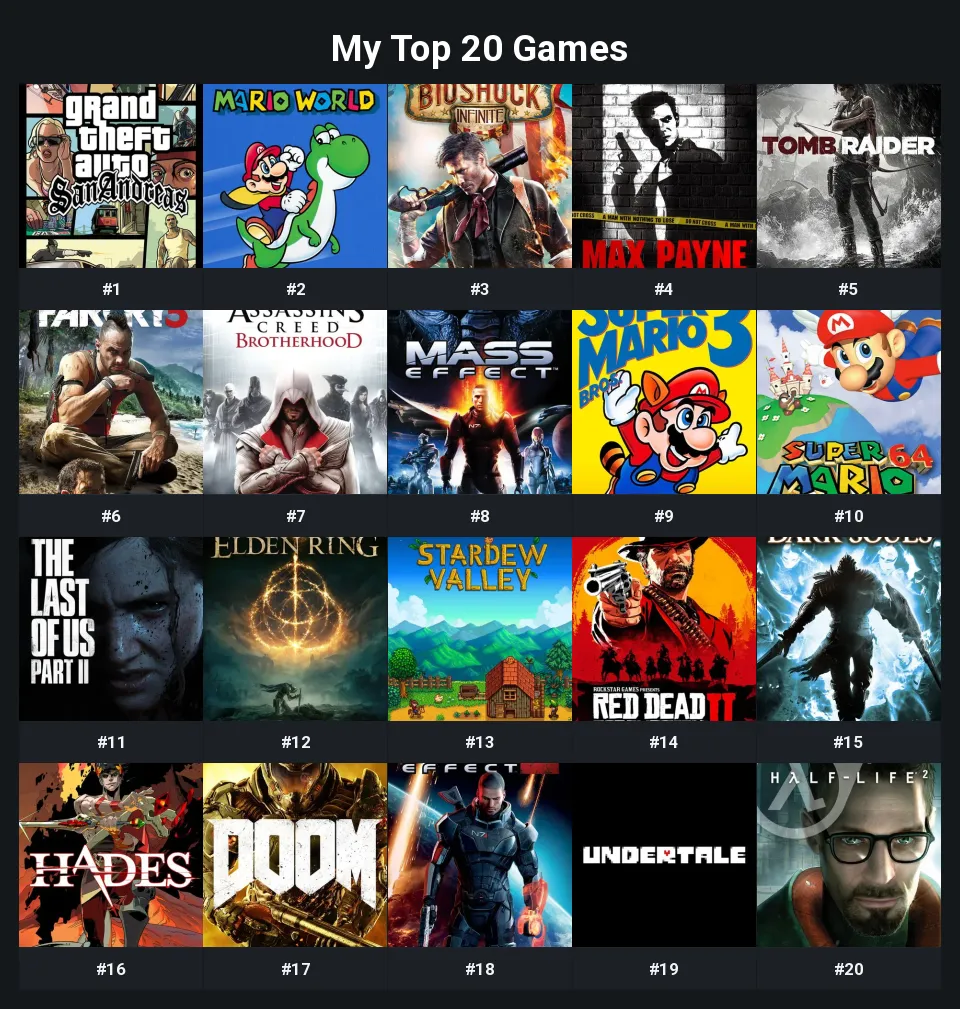 20slots
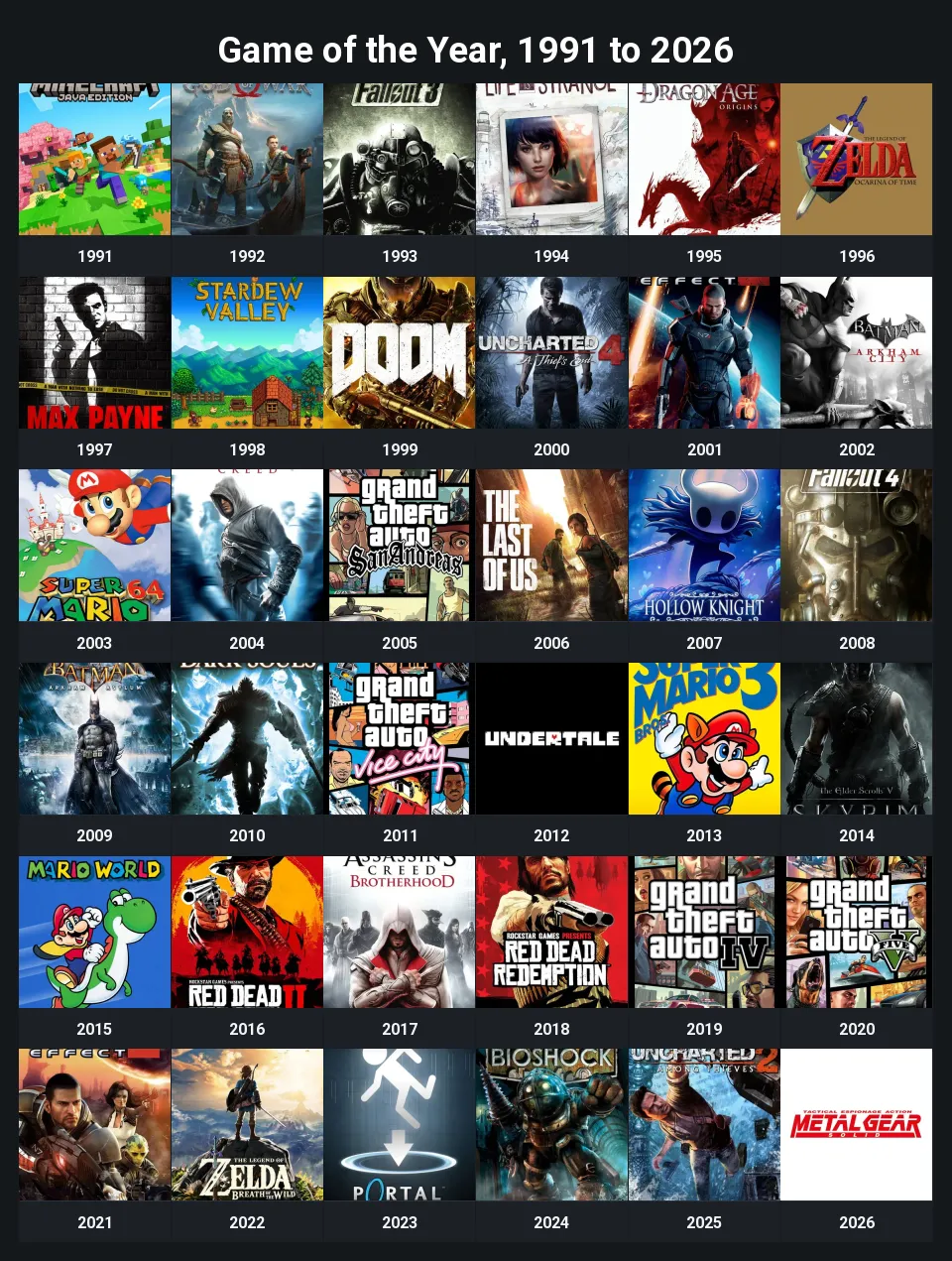 36slots
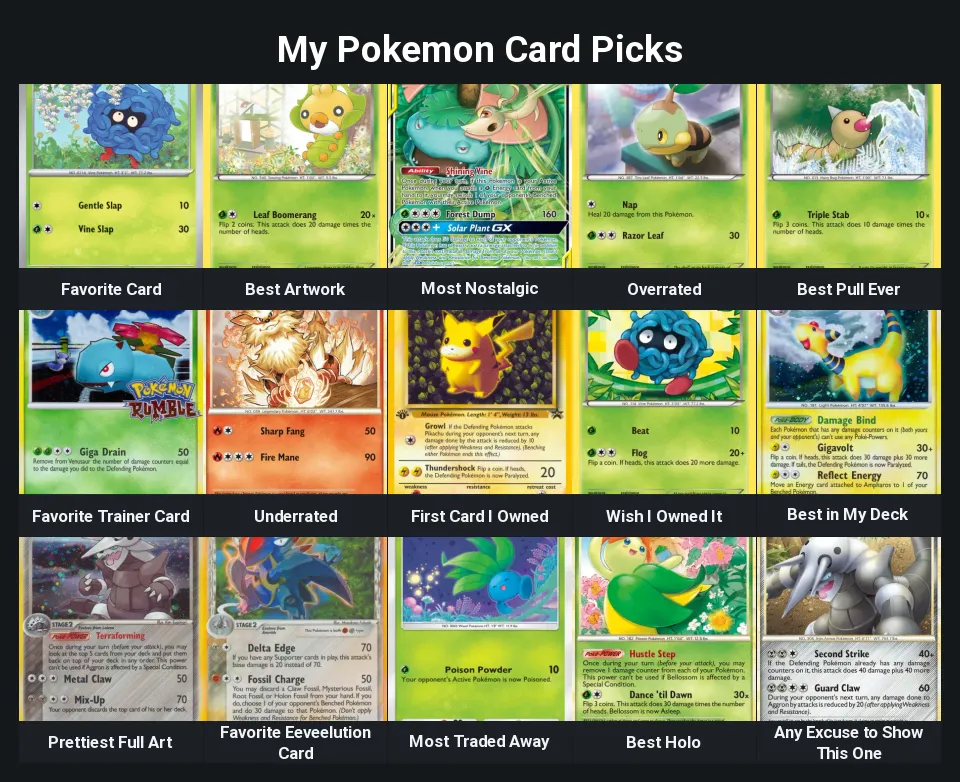 15slots
Popular completed grids
See allNo completed grids have been published yet.
How a grid works
The board above is a blank board, five across and four down, with the picture library docked on its left. Write a prompt under every slot: Favorite Game, Overrated, Best Soundtrack, or the numbers of a ranked list. Then click a slot and click a picture in the library. It holds packs of game covers, Pokemon, anime, manga, albums, movies, shows, board games and books, each with a search box, and an Upload tab for your own pictures. On a phone the library is a button at the bottom of the screen that opens it as a sheet. One picture answers one prompt; that is the whole format.
Or start from a template card below. A template is its prompts: picking one opens the board with the questions already written and every slot empty, so you answer them with your own pictures. Change the rows and columns at any time; the prompts and pictures already in the surviving slots stay. When the board is full, download it as a PNG, a JPEG or a PDF, or publish it to get a link with a preview card.
Publish a template of your own
If you have written a set of prompts that gets at what someone really thinks about a game series, a decade of music or a shelf of books, choose Publish as template in the publish dialog. Only the prompts are the template: the board appears on the grid templates page and in its category above with every picture cleared, and anyone who opens it answers your questions with their own.
How to make a grid
- Start on the blank board, or pick a template. The board above opens empty at 4x4 with the picture library docked on its left. Under it, the category cards and template cards open a board with the prompts already written: your video game picks, your anime picks, your music picks, a favorite Pokemon for every type, a game for every year. The rows and columns go from 1 to 12 by 1 to 10, so a sixteen-slot board and a year-by-year list are the same tool.
- Write a prompt under every slot. Each slot has a short line printed under it: the question that slot answers. Favorite Game, Best Story, Overhated, Nostalgic Childhood Game, or the numbers 1 to 20 for a ranked list. A template already has them written, and every one is yours to rewrite.
- Answer each prompt with a picture. Click a slot, then click a picture in the library on the left: packs of game covers, Pokemon, anime, manga, albums, movies, shows, board games and books, with a search box over each one, plus an Upload tab for your own images. On a phone, a button at the bottom of the screen opens the same library as a sheet. One picture per slot, and the item can print its name over its picture if you want it to.
- Download or publish. Pick one of four palettes and square, portrait or landscape slots, then download the grid as a PNG, a JPEG or a PDF. Or publish it to get a link with a preview card, or publish it as a template so anyone can answer your prompts with their own pictures.
What you can do
- The picture library docked beside the board: packs of game covers, Pokemon, albums, movies, shows, anime, manga, books and board games, or upload your own pictures.
- Rows and columns from 1 to 12 by 1 to 10: a 3x3, a 4x4, a 4x5, a 6x6 game-of-the-year board or a single long row.
- A prompt printed under every slot, up to 80 characters, written by you or carried in by the template.
- Thirteen ready-made boards with the prompts written and the right picture pack open in the library.
- Four colour palettes: Slate, Paper, Ink and Cream.
- Square, portrait or landscape slots, so posters and covers are not cropped to a square.
- Show each item's name as a caption strip over its picture, or keep the pictures clean.
- Works on a phone: a button at the bottom opens the picture library as a sheet.
- Download a PNG, a JPEG or a PDF with the tiermaps.com credit in the corner.
- Publish as a grid, or as a template that hands people your prompts with the pictures cleared.
Make your own grid
Your video game picks
The board that made the format: twenty prompts about the games you love, from Favorite Game and Best Soundtrack to Needs a Remake and Game Everyone Should Play, each answered with a cover. It says more about a person than a top ten does, because the questions do the work of explaining why each game is there.
Anime, manga and the shows you finished
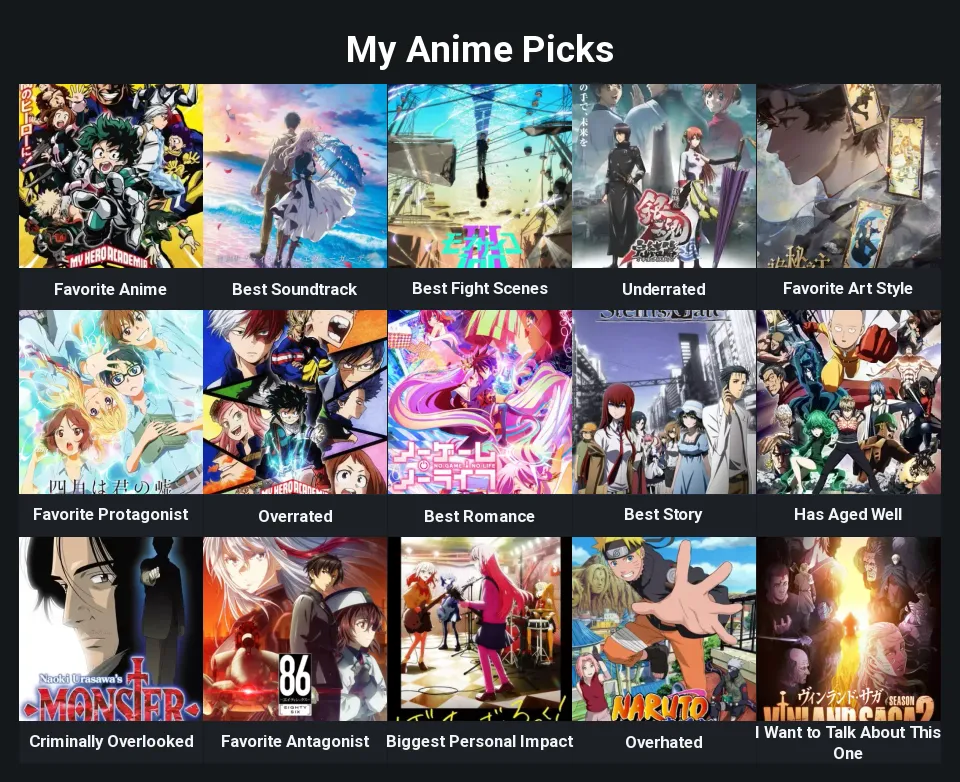
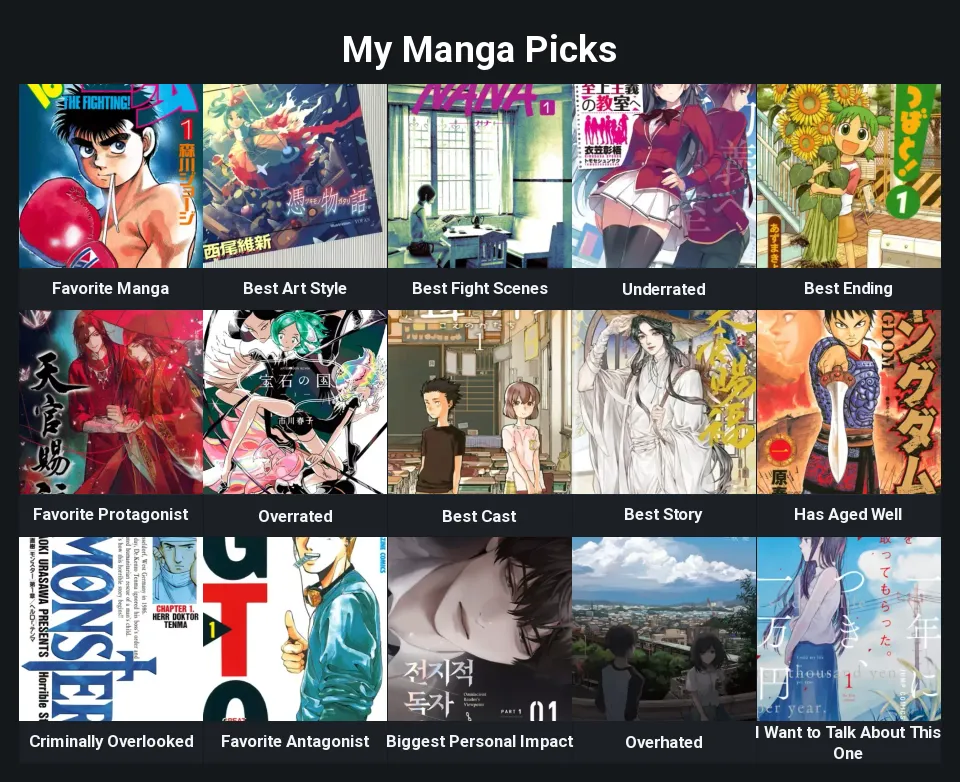
Favorite Protagonist, Best Fight Scenes, Criminally Overlooked, I Want to Talk About This One. The anime and manga packs put the key art a click away, and the same prompts work for TV shows and films with the movie and show packs open instead.
Pokemon by type, starters by generation
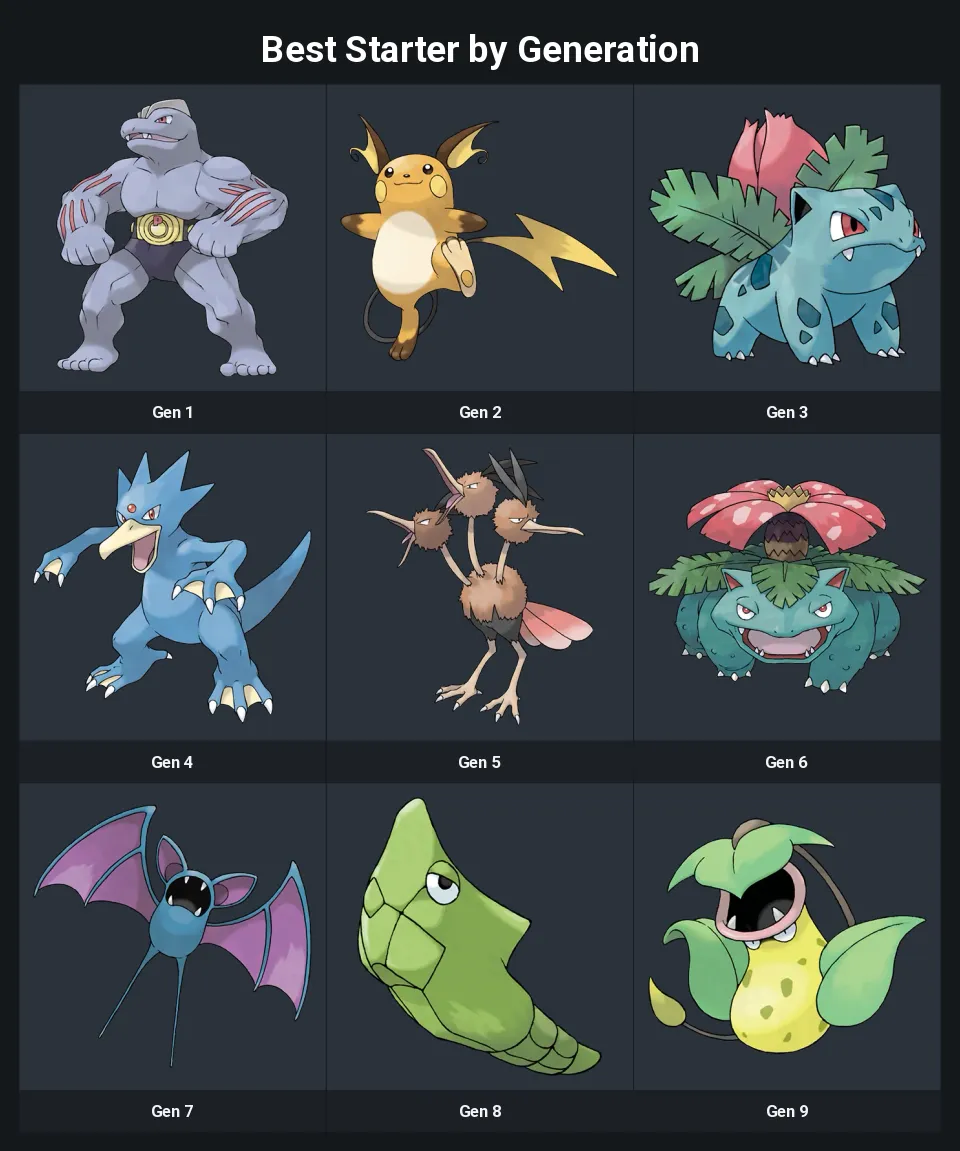
Eighteen types, one favorite each; nine generations, one starter each. Grids with a fixed set of prompts are the ones people compare side by side, and the Pokemon pack carries every one, so filling the board is a search and a click per slot.
A numbered top 20, or a game for every year
Set the prompts to 1 through 20 and the grid is a ranked list with covers. Set them to years and it is your game of the year from 1991 to now, thirty-six slots on a 6x6. Both are templates here already, and the prompts are ordinary text if you would rather count differently.
Music, books and the board game shelf
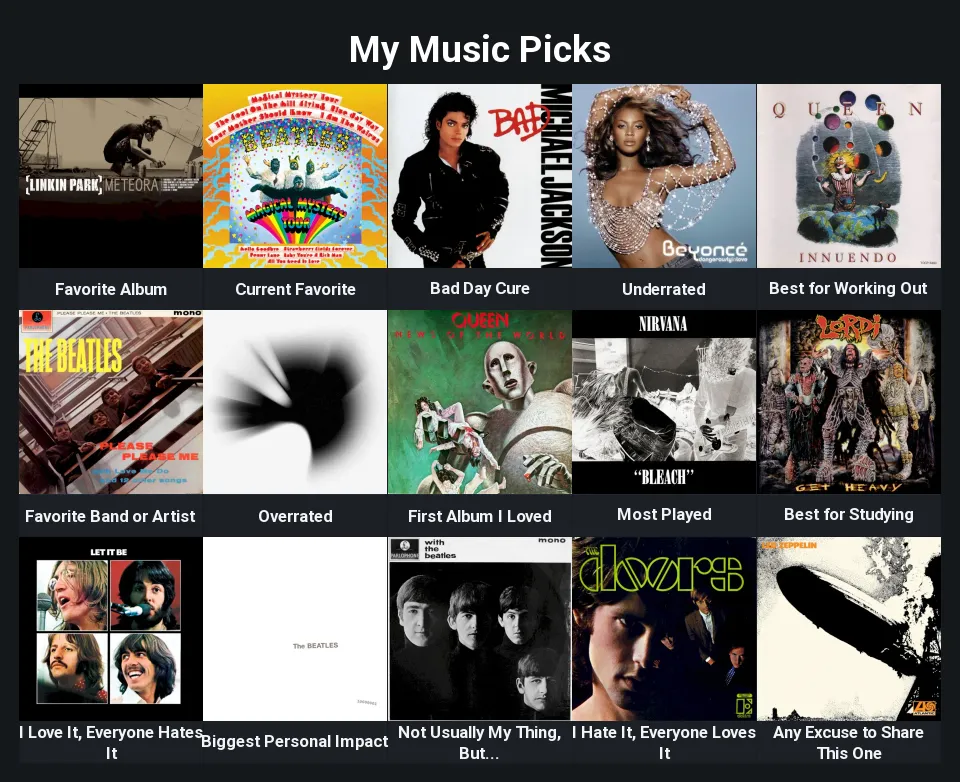
Fifteen prompts answered with album covers, book covers or box art: First Album I Bought, Best Cover Art, A Book I Reread, The Game That Always Comes Out. The library has a pack for each, and an upload tab for the record that is not in it.
Common questions
What is an about me grid?
A board of prompts, each answered with one picture. The classic is a grid of your video game picks, with prompts like Favorite Game, Best Story and Overrated under a cover apiece, but the same shape works for anime, music, films, books or anything with a picture. It reads faster than a list because the pictures carry the answers and the prompts explain them.
How do I put a picture in a slot?
Click the slot, then click a picture in the library docked on the left of the board. Each pack has a search box, so typing a title finds the cover. On a phone, a button at the bottom of the screen opens the library as a sheet that slides up. To use your own image, open the Upload tab in the same library; the picture goes into the slot you picked.
What sizes can a grid be?
Anything from 1 to 12 rows by 1 to 10 columns. The board on this page opens at 4x4, the quick starts under it are 3x3, 4x5 and 5x5, and the ready-made boards use the size their prompts need: 3x6 for the eighteen Pokemon types, 6x6 for a game per year. Changing the size keeps the prompts and pictures already in the surviving slots.
Can I use my own prompts?
Yes. Every prompt is a text line under its slot, up to 80 characters, and a template only fills them in for you. Rewrite any of them, leave some blank, or number them 1 to 20 for a ranked list.
What does "Use this template" do?
It opens a copy of a published grid with the same prompts and every picture cleared, so you answer the questions with your own choices. A template here is its prompts; the pictures are the answer, and they are yours to give. The original stays exactly as its author published it.
Is it free? Do I need an account?
It is free and the editor opens without a login. Your work is kept in this browser while you make it, and exporting asks nothing of you. Publishing is the one action that needs an account, because a published grid is a public page with a name on it.
Is there a watermark on the download?
The exported image carries the site address, tiermaps.com, in small type in the bottom corner. Nothing is drawn over the grid itself, and a published page shows the preview with no mark at all. The export is otherwise unrestricted: full size, no crop, no sign-in wall.